
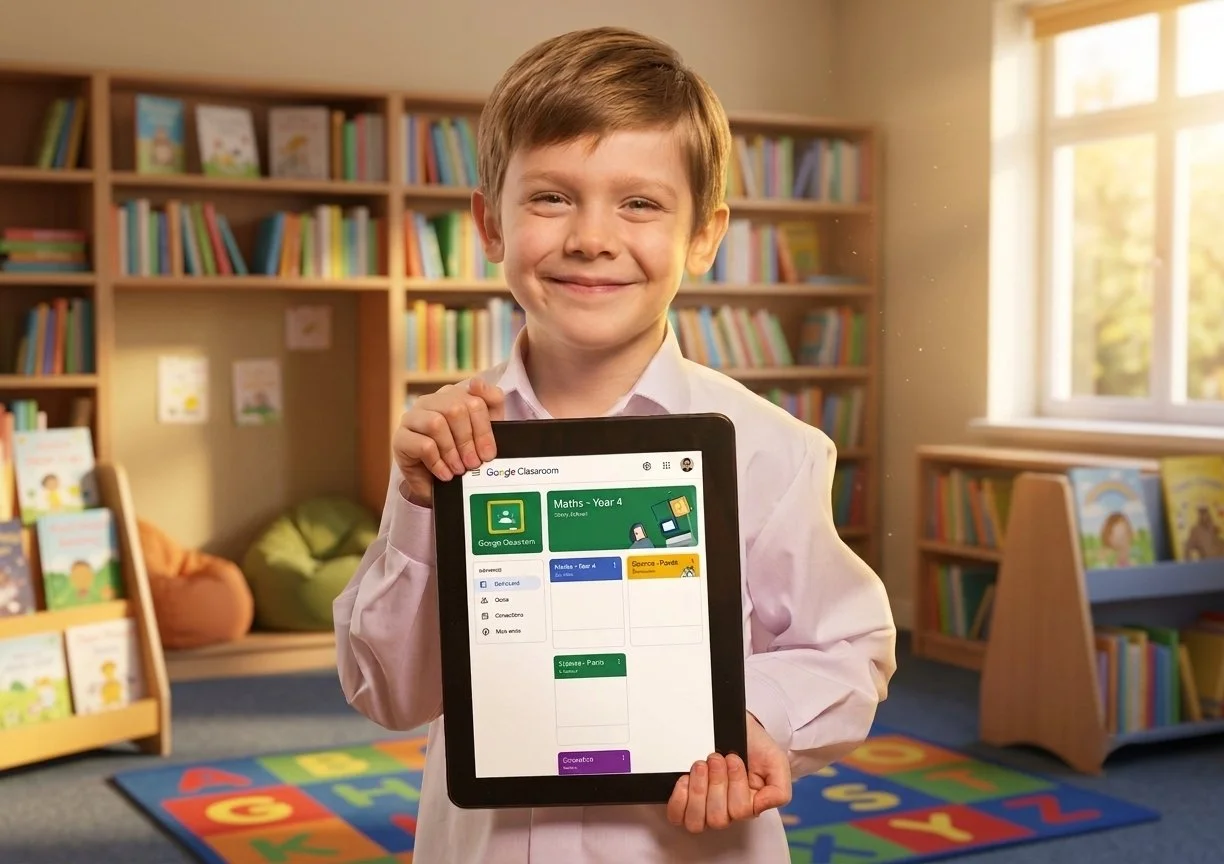
Classroom
Click here to login to Google Classroom
Quick Student Login
Pupils can securely access their virtual classrooms on any desktop computer, laptop, tablet, or smartphone.
Click the direct login link below.
Log in using your school Google username (e.g., username@stmaryallsaints.co.uk) and your secure password.
Select your current class card from the home dashboard to view your latest assignments.
Log In to Google Classroom (External Link)
Information for Parents & Guardians
We warmly encourage parents to check Google Classroom together with their children. Inside the platform, you will find:
The Stream: A live feed of class announcements, weekly updates, and reminders from your child's class teacher.
Classwork Page: The structured area where weekly homework projects, spelling lists, and learning materials are clearly organized by topic or week.
Upcoming Tasks Box: A handy widget on the left side of the screen that highlights any homework tasks approaching their due date.
Google Classroom Hub
At St Mary & All Saints, we harness digital technology to expand our pupils' Curiosity and foster independent learning. Google Classroom is our secure online learning platform where teachers share homework, digital resources, and interactive class updates.
Whether your child is completing a weekly homework task or accessing home-learning resources, this hub is designed to make digital learning safe, supportive, and seamless.
Useful Links
-
![]()
Google Chrome
In order to use Google classrooms on a computer, you will need Google Chrome as your internet browser. To install this, click on the icon above which takes you to a download button. Click download and follow the instructions in the installer.
-
![]()
Google Classroom
Click the button to go to your child’s class page. You will need to log in with their e-mail and password. If you have misplaced these details, please contact the school and we will support you with this.
-
![]()
The Classroom App
The easiest way to use Google classroom is through the app. The Classroom app can be downloaded on Android (Android refers to most non-Apple mobile phones and tablets), Apple® iPhone® or iPad®, or mobile devices running Chrome OS to manage your class and get work done.
-
![]()
Android
To use Classroom on your Android device, download the Classroom app from Google Play.
On your device, tap Play Store.
Find and install the Google Classroom app. -
![]()
iPhone and iPad
To use Classroom on your iPhone or iPad, download the Classroom app from the Apple® App Store®.
On your device, tap App Store.
Find and install the Google Classroom app.
FAQs
Lost or forgotten passwords
1
Contact School Office
For data security and safeguarding reasons, class teachers cannot reset passwords directly. If your child has forgotten their login details, please email the main school office at office@stmaryallsaints.co.uk and our technical team will securely reissue them.
Using tablets and smartphones
2
App Download
If you are accessing the platform via an iPad, Android tablet, or mobile phone, we highly recommend downloading the free Google Classroom App from the Apple App Store or Google Play Store rather than using a mobile web browser. It provides a vastly superior, child-friendly user experience. Please see above for links
The 'Permission Needed' error
3
Check Active Accounts.
If you see an error message stating you do not have permission to view a page, it usually means a personal or parental Gmail account is logged into your web browser. Ensure you log completely out of personal accounts, or open a private 'Incognito' window, before entering your child's official school login credentials